
Connect Microsoft Power BI
Our BI Link data connector allows you to directly connect to available data for your products or related categories, across various distribution channels. Access to the connector may vary depending on the preferred BI tool. On this page, we will walk through how to connect your data using Microsoft Power BI.
Before You Begin
Before you begin, you will need to obtain and download a Walmart-issued, secured key to enable a connection. If you have not yet obtained a secure key, please contact your Account Manager to request access.
Connect Power BI
Watch the video or follow the steps below to set up the connection using Power BI.
① Set up the connection
- Open the Power BI application
- Select the Home tab
- Select Get data
- Select more at the bottom of the toolbar
- Using the Get data search bar, search for and select Google BigQuery.
Note: If you don't see Google BigQuery as an option, please download it here.
Required: Before connecting to Google BigQuery, check your Power BI connection settings and configure the Google BigQuery connector as described below.
-
In Power BI, go to File > Options and settings > Options > Preview features.
-
Depending on your Power BI version, complete one of the following:
- If Use new Google BigQuery connector implementation is displayed and selected, deselect it.
- If Use legacy Google BigQuery connector implementation is displayed and not selected, select it.
-
Save your changes and restart Power BI if prompted.
Note: The option displayed may vary depending on your Power BI version. Some versions may not display either option. If neither option is available, no changes are required.
If you encounter connection issues after recent Power BI or Google updates, ensure that “Use new Google BigQuery connector implementation" is deselected.
② Connect the Service Account
- Select Service Account Login in the left-side toolbar in Power BI
- Enter the Service Account email and then paste the entire contents of the text file sent to you by Walmart
- Select Connect
③ Connect to the data
-
On the left-hand side, find the new folder titled wmt-dv-bi-link-prod
-
Select the file to expand the tables
-
Select all desired tables under dv_supplier
-
Select Load
-
Once prompted, we recommend selecting DirectQuery. Selecting DirectQuery may result in slower load times; however, this option will allow you to directly query the data without having to download extremely large data sets.
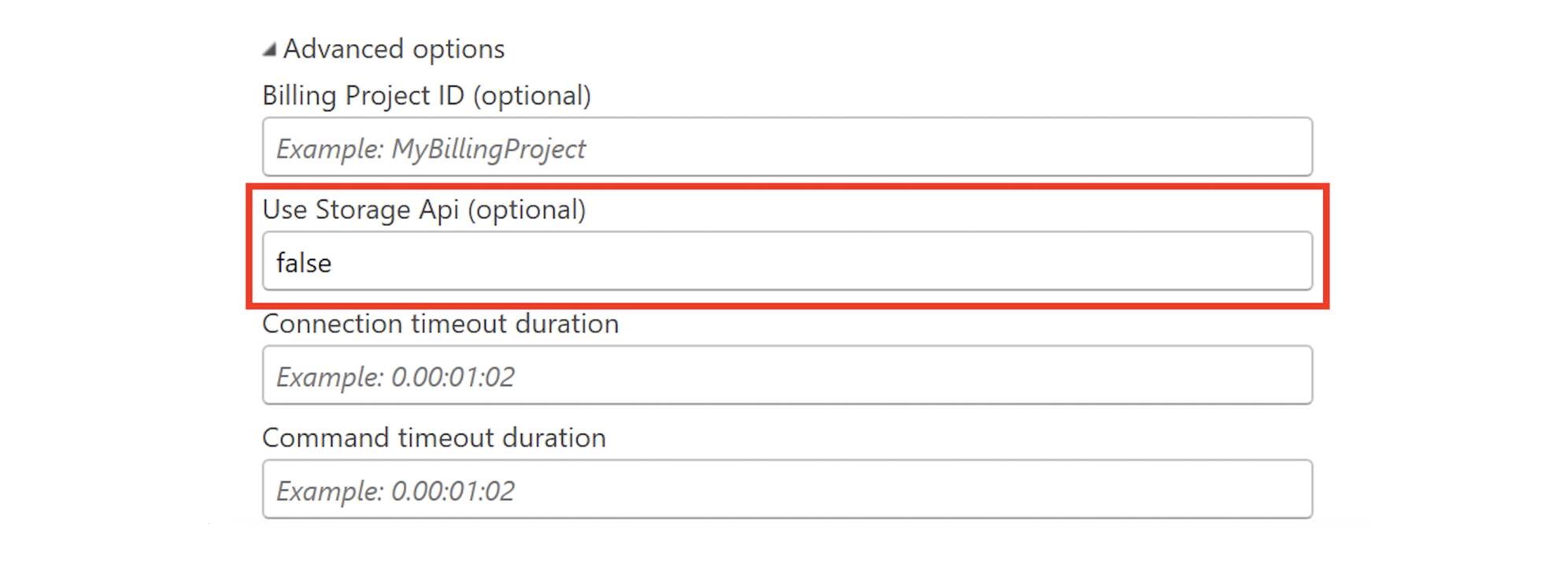
If you prefer to Import the data rather than use DirectQuery, be sure to put false under the “Use Storage API (optional)" in Google BigQuery Advanced settings (see image below).
On the right side of the screen, under the data tab, you can confirm your data connections and start creating visualizations!
Once you've connected to the data and selected your desired tables, your connection will remain until you remove it.
When new tables are released, repeat the steps above to add the new tables to your available data sets.
Publishing and Sharing Reports
To share reports, users must have access to premium workspaces. This is key functionality to enable report sharing across organizations.
Click here to learn more about sharing in Power BI.
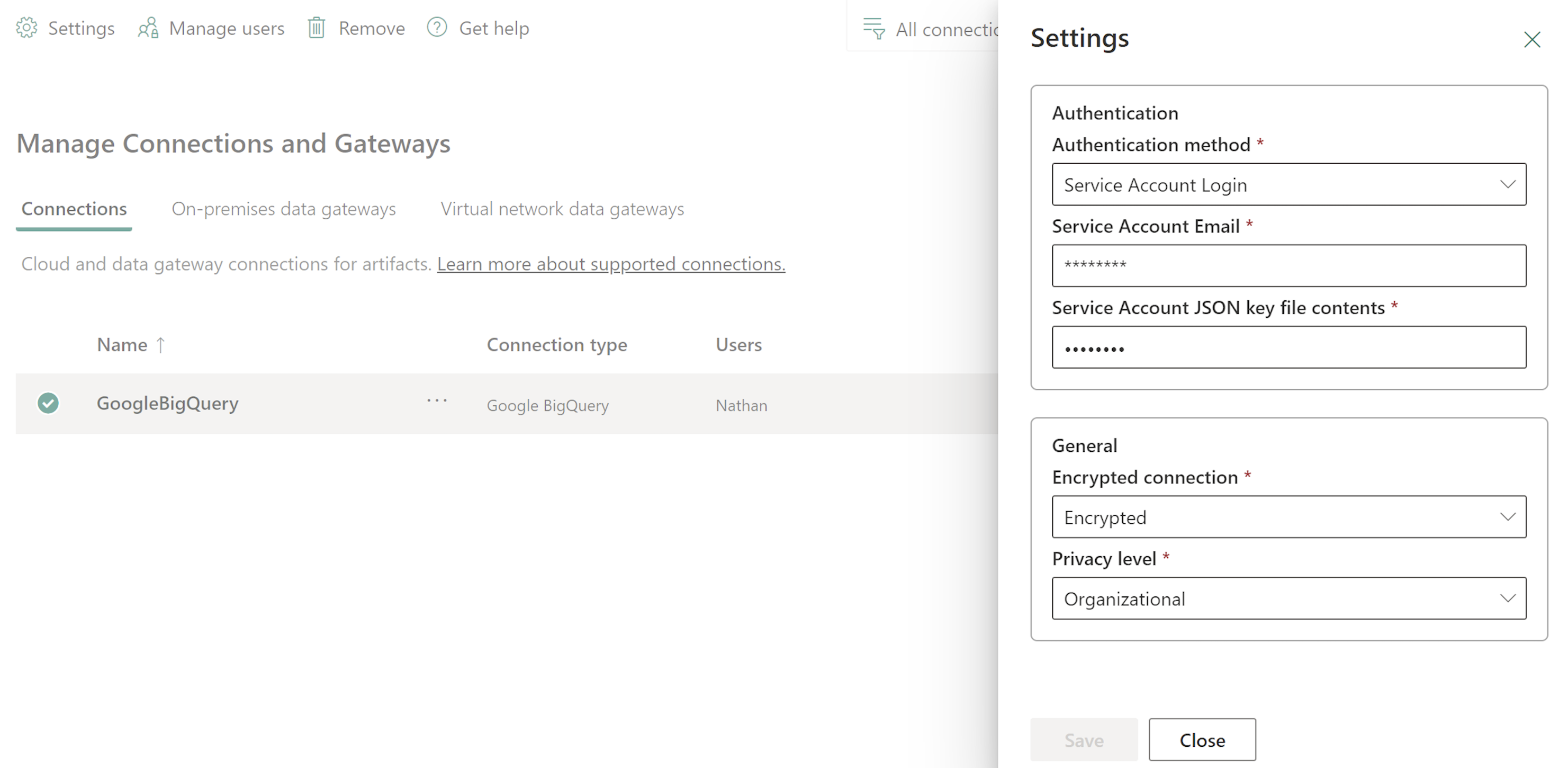
If you are still encountering an error when trying to publish, please try updating your data settings. To update the settings in Power BI:
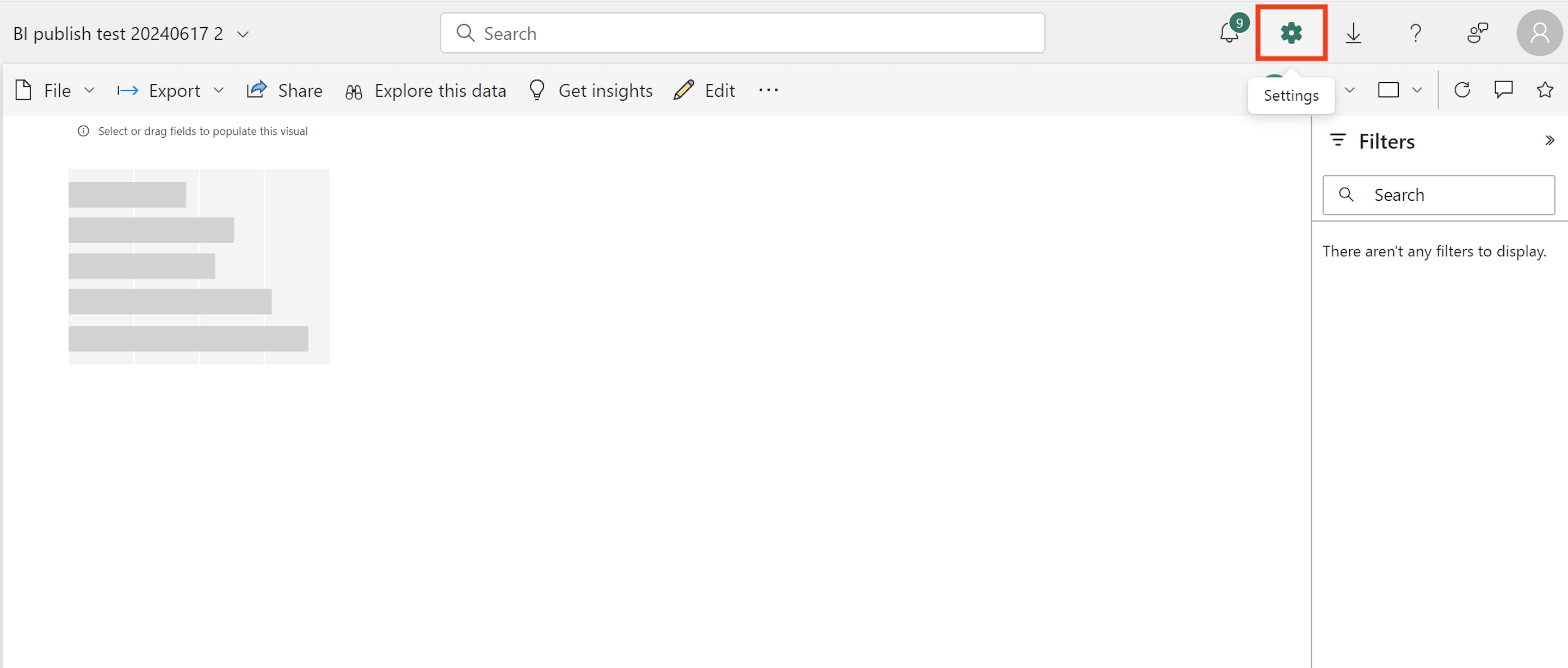
- Navigate to Settings in the top, right corner of Power BI.
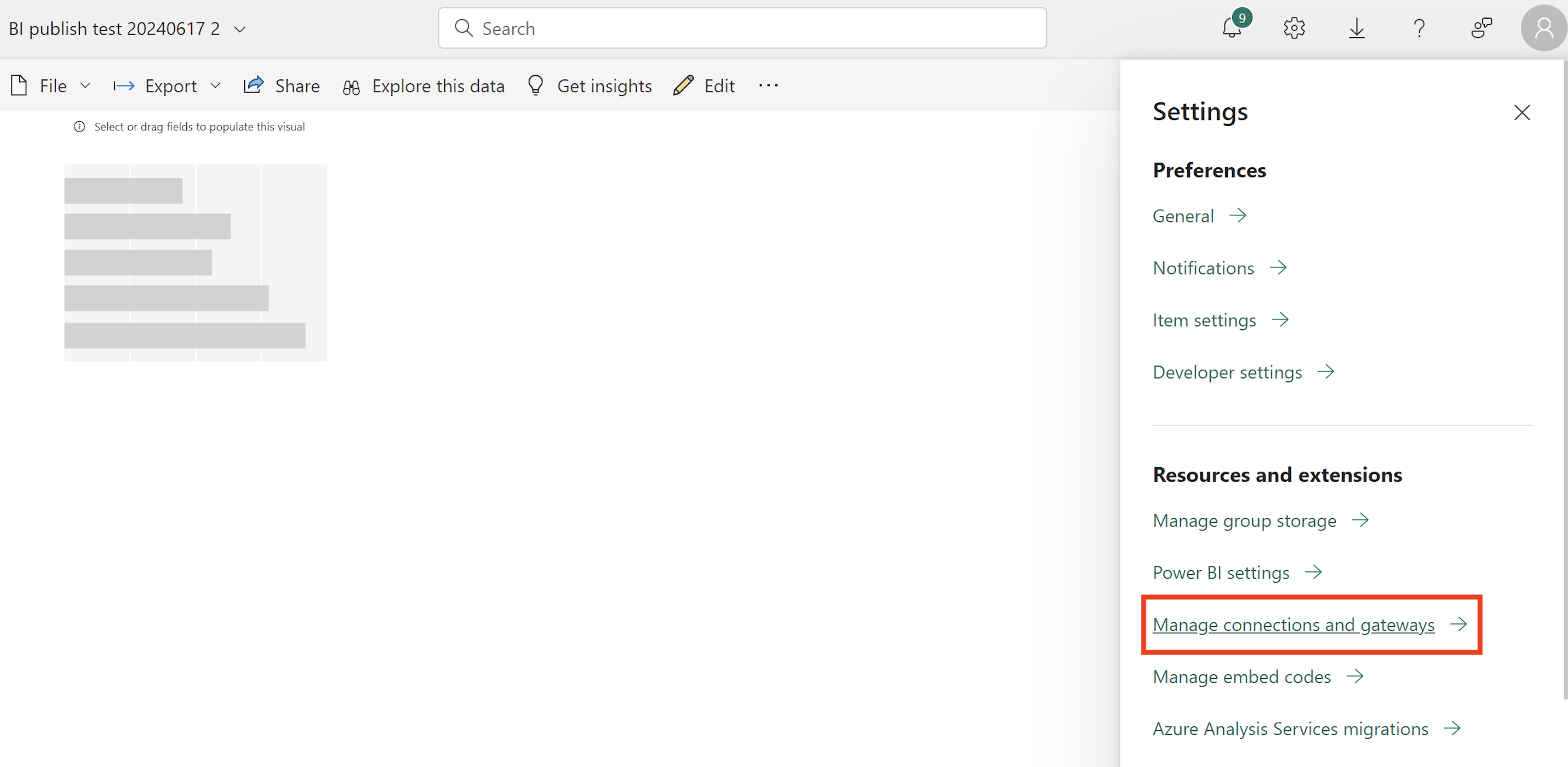
- Select Manage connections and gateways
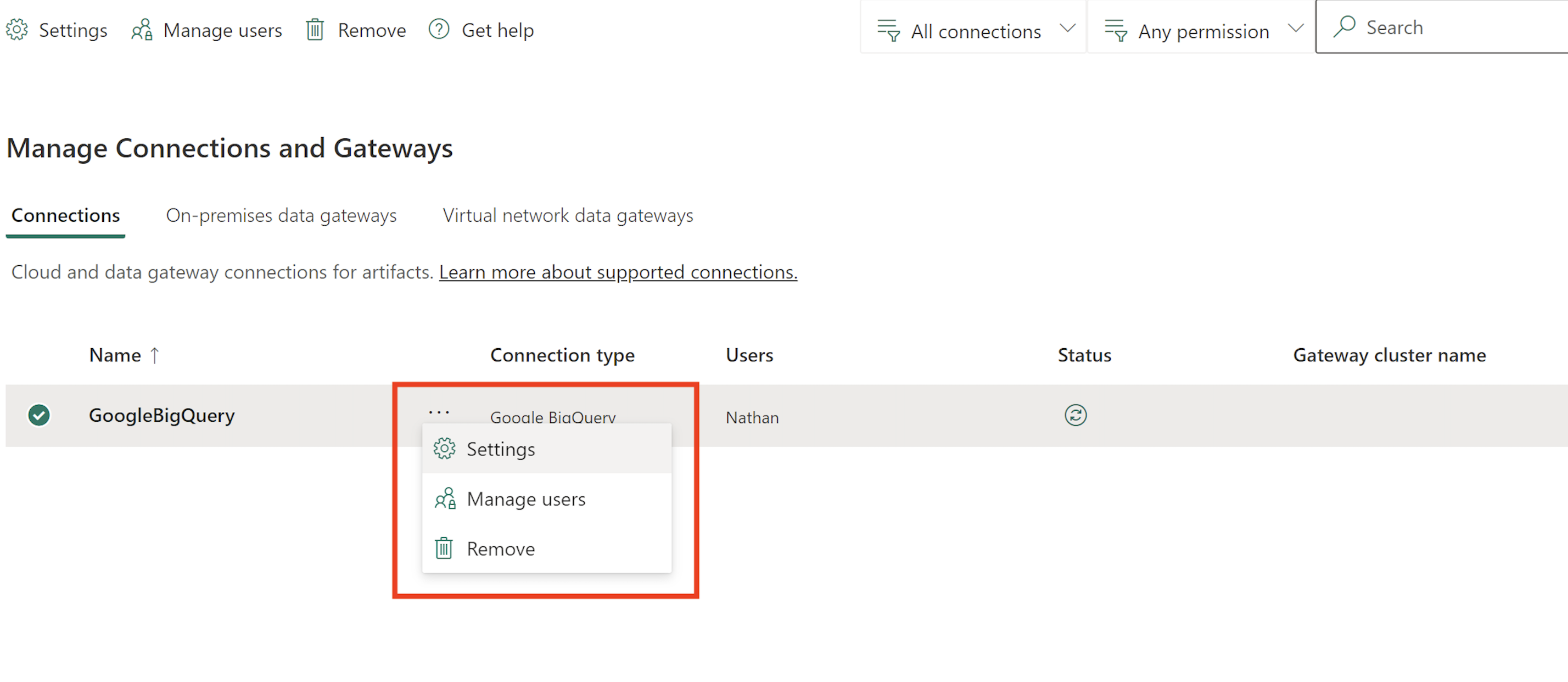
- Select the 3 dots next to Google BigQuery and select Settings
- Add the Service Level Account email and JSON contents associated with the account
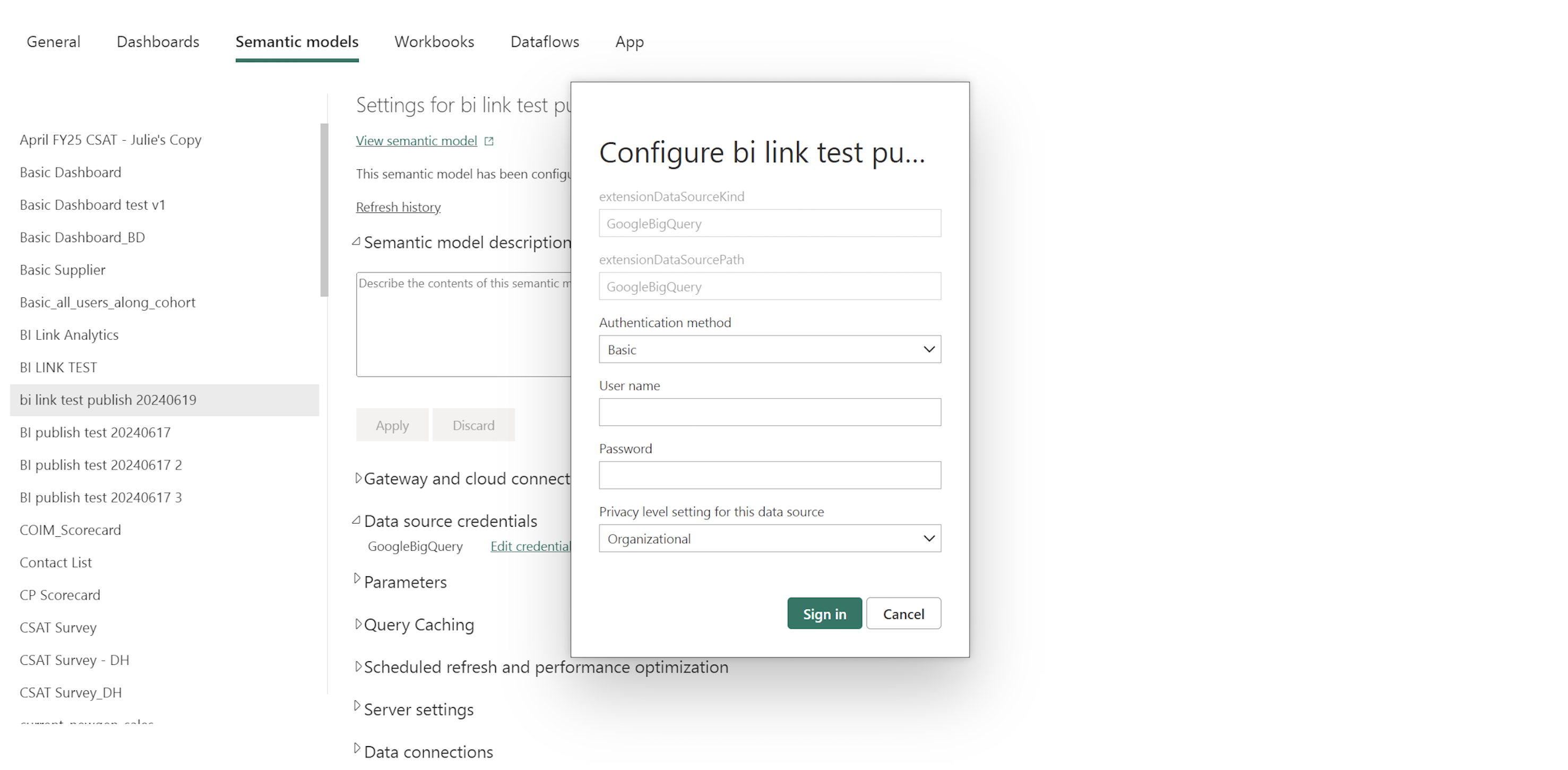
To update your settings through the Symantic Layer, navigate to your data source credentials, then enter the Service Level Account email and JSON contents associated with the account.
Next Steps
Now that you've connected to the data, check out our:
- Documentation Our documentation provides information about our available snapshot and incremental data tables and error codes you may encounter. Once you've set up your access, go here to find all the details about the data you can receive.
- Release Notes Our Release Notes tell you everything you need to know about upcoming and past releases, as well as any updates to the documentation.
- Glossary The Glossary provides element technical names, business names, and definitions.
- Learning Center The Learning Center provides additional support materials, such as extended explanations, table use cases, and links to additional learning resources (as applicable).
Disclaimer
Your use of the documentation is at your own discretion and risk. To the maximum extent permitted by law, the data, documentation and all related software, components, and support are provided by Walmart on an ‘as-is’ and ‘as available’ basis without any warranties of any kind, and Walmart expressly disclaims any and all express and implied warranties, including, but not limited to, warranties of merchantability, fitness for a particular purpose, title, non-infringement, non-interference, and warranties arising from a course of dealing. You acknowledge that Walmart does not warrant that the data will be uninterrupted, timely, secure, or error-free. Walmart may modify and delete the documentation in its sole discretion and without notice.
In no event shall Walmart be liable to you or any third parties for any damages whatsoever, including, without limitation, those resulting from loss of use, damage to your computer system, loss of data or profits, or any liability arising out of or in connection with the use of the data, documentation, software, components, or support.
©️Walmart | All Rights Reserved | Confidential
Updated 21 days ago
